
Without providing a secure file sharing service to employees, they may select consumer cloud file sharing solutions like Dropbox. This approach leads to questions like, “Where, exactly, is my data? Who has access to it? What will they do with it?” And these concerns don’t just involve cyber-threats and hackers but competitors, foreign nationals, and even governments.
CentreStack eliminates the common drawbacks of remote file server access and cloud file sharing solutions and provides the best of both worlds – the privacy, security and control of legacy file servers secured by Active Directory, combined with the efficiency and productivity gains of cloud file sharing.
CentreStack integrates with Office 365 for web-based co-editing and co-authoring.
Use Outlook integration to transfer large folder or files as web links via email.
Use web links to share files and folders with recipients or to receive files.

Define different permissions for folders at different levels of the directory structure.
Web based secure data room allows view-only access with download disabled.
From internal Active Directory users to external clients and partners, you can define user rights for folder sharing.
Cloud migration may seem increasingly inevitable, making it difficult to manage the tensions between productivity benefits and data privacy threats. But CentreStack offers a solution for thought leaders seeking to simplify the way people work without compromising data privacy.
Whether it's private sharing for on-prem and remote workers, external clients, partners or guest users in general, CentreStack has the flexibility to provide a great solution!
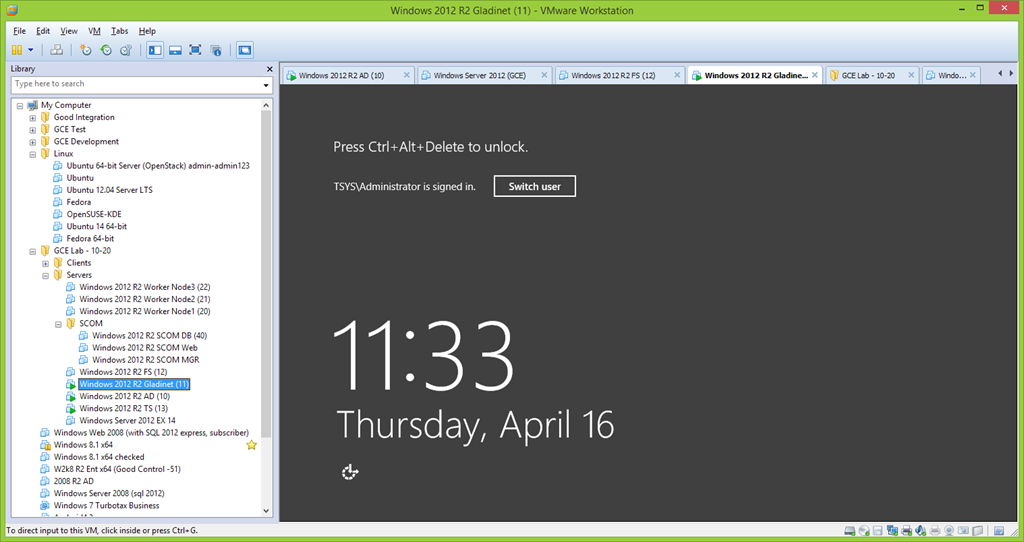
To show how it is done, we have a lab setup with one Gladinet Cloud Enterprise (CentreStack) Server, One Active Directory Server and One Windows File Server. For demonstration purpose, the Active Directory Server and the File Server can co-exist on the same Windows 2012 server. As shown below, Gladinet Cloud Enterprise is running at “Windows 2012 R2 Gladinet (11)”, which it will have a public IP Address and DNS name. The Active Directory and File Server are running at the “Windows 2012 R2 AD (10)”. This Active Directory server can be behind the second firewall of a DMZ.
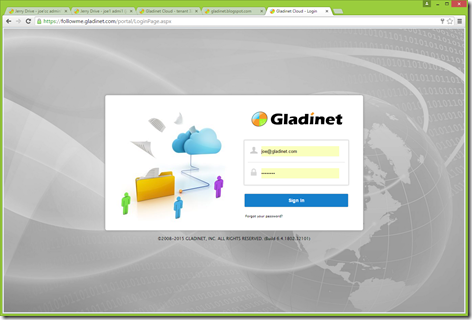
The Gladinet Cloud Enterprise is running with GCE version 6.4.1802 as shown below in the copyright section
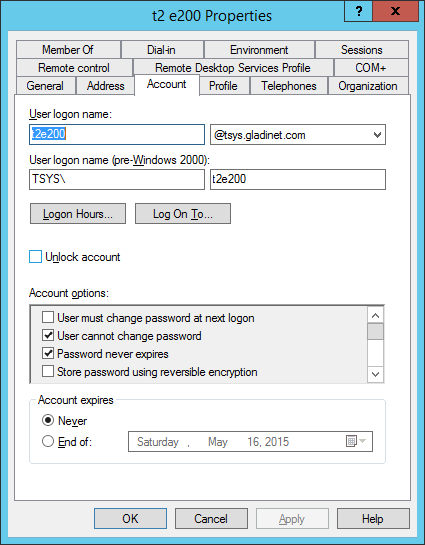
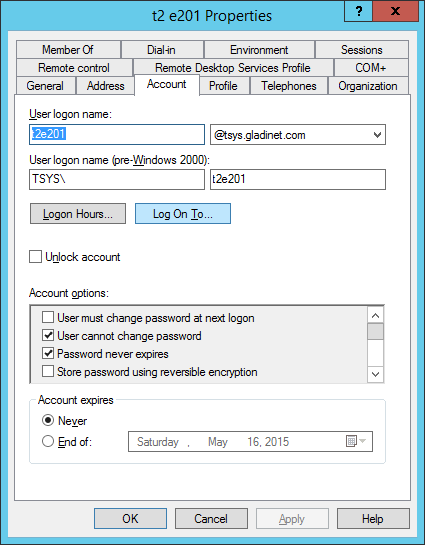
We will setup two users t2e200@tsys.gladinet.com and t2e201@tsys.gladinet.com
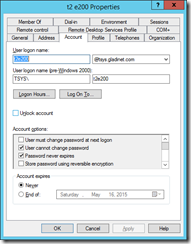
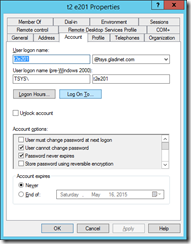
We will setup 3 network shares. One is for the group share, one is for the t2e200 user’s home directory, and one is for t2e201 user’s home directory.

As shown below, both t2e200 and t2e201 users are added to the group share.

For Share Permission to be imported seamlessly, we also setup share permission.

We will also connect the user’s home directory in Active Directory.


Now it is all set. Our goal is to import the Group Share (testshare3) and also user’s home directory when the users are imported to the Gladinet Cloud Enterprise.
We can start importing the Group Share from the web portal->Management Console->Collaboration->Team Folder

Once the dialog shows up, use the “Convert Existing File Share as Team Folder” option. In the lab setup, we need to make sure the Gladinet Cloud Enterprise server can access the File Server via two different protocols. SMB/CIFS for the file server share and also WMI for importing

Use an Active Directory that has enough permission to read the share and also read the share’s permission over WMI.

After it is done, check the imported team folder’s property.

You can see t2e200 and t2e201 users are all imported. So the imported Team Folder gets the same set of users that are assigned to the network share’s share permission.

Check the user manager, you can see that the users are imported as well.

As you can see here, the user’s home directory and the user’s group share are all showing up.

and on mobile device as well.

We turned a normal Windows File Server network share into a Gladinet Cloud Enterprise Group Share Team Folder. After that, users can collaboration over different kind of devices over the Internet. Here is the video for the Group Share with Active Directory: