﻿<%@ Page Language="C#" AutoEventWireup="true" CodeBehind="QuickStart.aspx.cs" Inherits="cloudenterprise.QuickStart"
    MasterPageFile="Site.master" %>


<asp:Content ID="Content1" runat="server" ContentPlaceHolderID="ContentTitle">
    CentreStack (Gladinet Cloud Enterprise) Quick Start Guide
</asp:Content>

<asp:Content ID="Content2" runat="server" ContentPlaceHolderID="SEOBlock">
    <meta name="keywords" content="enterprise dropbox alternative, enterprise dropbox replacement, owncloud alternative, cloud storage, private cloud, cloud enterprise, enterprise cloud,  self-hosted dropbox, enterprise dropbox, owncloud alternative, cloud desktop, cloud gateway, cloud agent, Cloud computing environment, map drive, backup, online backup,  online storage, cloud storage, cloud storage client, amazon s3, skydrive, HP docs, HP picasa, emc atmos, synaptic storage, nirvanix, mezeo, Peer1 CloudOne, HP Storage for Developer" />
    <meta name="description" content="CentreStack (GLADINET cloud enterprise) provides self-hosted cloud storage solutions that is alternative to Dropbox and OwnCloud, with backup, access, sync, integration, connect, identity & control management. It is a self-hosted enterprise dropbox alternative and enterprise dropbox replacement solution. This whitepaper documents the quick start guide of installing and setting up the solution." />
</asp:Content>

<asp:Content ID="Content" runat="server" ContentPlaceHolderID="MainContent">
    <table width="860" align="center" border="0" cellspacing="0" cellpadding="0" style="padding: 0px;">
        <tr>
            <td>
                &nbsp;
            </td>
        </tr>
        <tr>
            <td class="checkout" width="860" style="padding: 16px;">
                <a name="words"></a>
                <h1 class="intro" style="margin-top: 20px;">
                    CentreStack Quick Start Guide</h1>
                <h2 style="color: #808080;">
                    Instructions to get started</h2>
                <div class="toc" style="float: left;">
                    <b style="margin-left: 8px;">Table of Contents</b><br />
                    <ul style="list-style-type: circle;">
                        <li><a class="normal" href="#system">System Requirements</a></li>
                        <li><a class="normal" href="#webplatform">Pre-requisite : Web Platform</a></li>
                        <li><a class="normal" href="#install">Install Gladinet Cloud</a></li>
                        <li><a class="normal" href="#deploy">Deploy</a></li>
                    </ul>
                    <b style="margin-left: 8px;">Whitepaper and Deployment Guide</b><br />
                    <ul>
                        <li><a href="Default.aspx">Product White Paper</a> </li>
                        <li><a href="QuickStart.aspx">Quick Start Guide</a></li>
                        <li><a href="ClientDeployment.aspx">Client Deployment Guide</a></li>
                        <li><a href="TechWhitePaper.aspx">Technical White Paper</a></li>
                        <li><a href="deployment.pdf">Deployment Guide</a></li>
                        <li><a href="/ServiceProvider/GladinetCloudEnterpriseMultiSiteDeploymentGuide.pdf">Multi-Site
                            Deployment Guide</a></li>
                    </ul>
                </div>
                <p>
                    CentreStack
                    uses the Microsoft Web
                    Platform (IIS , ASP.NET, .NET Framework 4, SQL Server/Express). These
                    components will be configured by the&nbsp; <a href="http://www.gladinet.com/p/download_gce.htm">CentreStack installation
                    package automatically</a>. </p>
                <h2>
                    System Requirements</h2>
                <p>
                    Operating Systems: Windows 2008 R2 or Windows 2012/R2 <br />
                    Architecture: 64 bit
                </p>
                <p>
                    Minimum Requirements: 4G Memory, Intel CPU, 160G Hard Drive, Physical or Virtual
                    Machine</p>
                <p>
                    Additional Requirements: CentreStack Installation requires a clean image with plain OS installed.</p>
                <h2>
                    Pre-requisite: Microsoft Web Platform (Will be installed automatically)</h2>
                <div style="float: right; text-align: center;">
                    <a id='gcethumb' class="various iframe" href="http://www.youtube.com/embed/VqcGwq8nyyc?hd=1&autoplay=1">
                        <img src="images/gcethumb.jpg" alt="CentreStack" /></a>
                    <br />
                    Quick Start Video
                    <br />
                    <a href="features/VideoGallery.aspx">(More Video ...)</a>
                </div>
                <p>
                    The following components will be automatically installed by the Gladinet installation package if they are not present on the system.
                    <ul>
                        <li>IIS - On Windows 2008/2012 machine, this is included in OS already</li>
                        <li>IIS - ASP.NET</li>
                        <li>IIS - IIS Management Console</li>
                        <li>.NET Framework 4.5 Full (not Client Profile)</li>
                        <li>SQL Server 2008/2012/2014 Express</li>
                        <li>SQL Server 2008/2012/2014 Management Studio Express</li>
                    </ul></p>
                <p>
                    <div style="float: right;">
                        <a id='A28' class="various iframe" href="http://www.youtube.com/embed/VqcGwq8nyyc?hd=1&autoplay=1">
                            <img src="features/images/video/newgceinstall.jpg" alt="windows store app" /></a>
                    </div>
                    The new CentreStack installer released after Nov 1, 2013 is capable of collecting the
                    pre-requisite and install them if they are not already on the system. The new CentreStack installer can be
                    a one-stop installer to install everything from begin to end. 
                </p>
                <h2>
                    Install CentreStack</h2>
                <h3>
                    Step 1 - Follow these <a href="http://www.gladinet.com/p/GCE_InstallGUI.htm"> installation instructions </a>
                    to setup CentreStack.
                </h3>

                <h3>
                    Step 2 - Configure CentreStack</h3>
                <p>
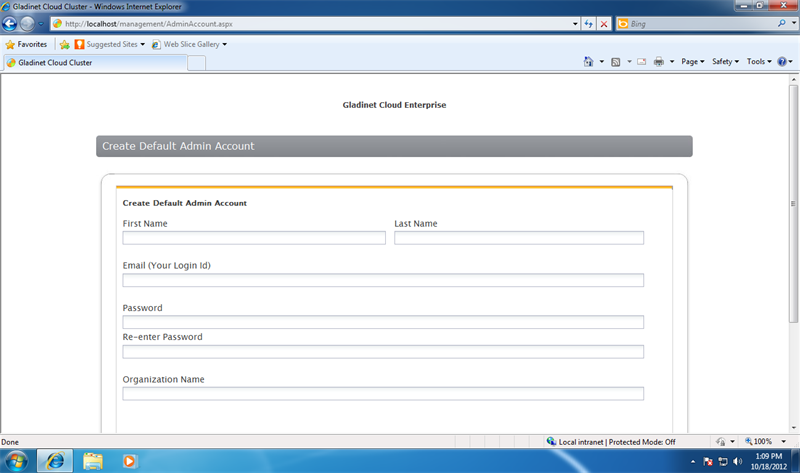
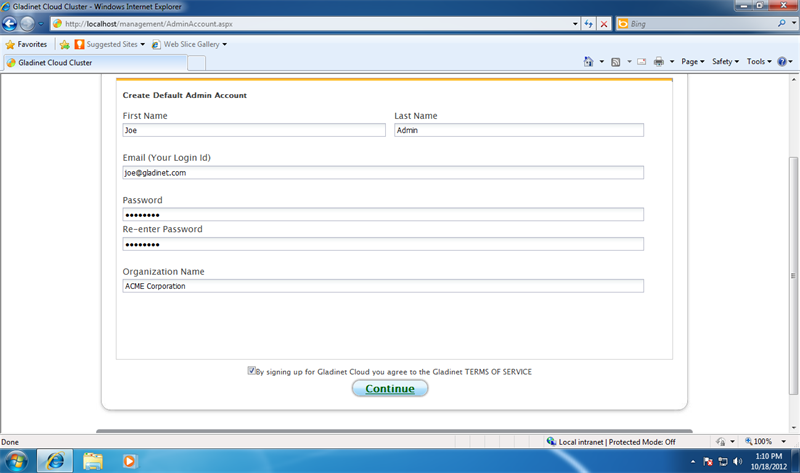
                    Upon Restart, you will be directed to the configuration page. The very first user
                    registered will be the administrator for the CentreStack.</p>
                <table width="100%" border="0">
                    <tr>
                        <td width="25%" style="text-align: center;">
                            <a id='A22' class="various iframe" href="target/wp25800.png">
                                <img src="target/wp25160.png" alt="Microsoft Web Platform Installer" /></a><br />
                            Administrator
                        </td>
                        <td width="25%" style="text-align: center;">
                            <a id='A23' class="various iframe" href="target/wp26800.png">
                                <img src="target/wp26160.png" alt="Microsoft Web Platform Installer" /></a><br />
                            Fill in Administrator
                        </td>
                        <td width="25%">
                        </td>
                        <td width="25%">
                        </td>
                    </tr>
                </table>
                <p>
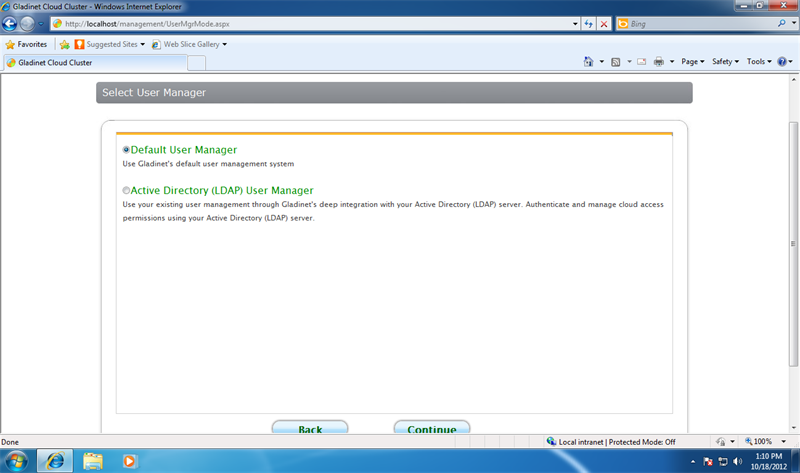
                    Next you will need to select User Manager. You can select the default user manager
                    so you can manually create users. You can also select Active Directory so you use
                    your existing user management infrastructure.</p>
                <table width="100%" border="0">
                    <tr>
                        <td width="25%" style="text-align: center;">
                            <a id='A24' class="various iframe" href="target/wp27800.png">
                                <img src="target/wp27160.png" alt="Microsoft Web Platform Installer" /></a><br />
                            User Manager
                        </td>
                        <td width="25%">
                        </td>
                        <td width="25%">
                        </td>
                        <td width="25%">
                        </td>
                    </tr>
                </table>
                <p>
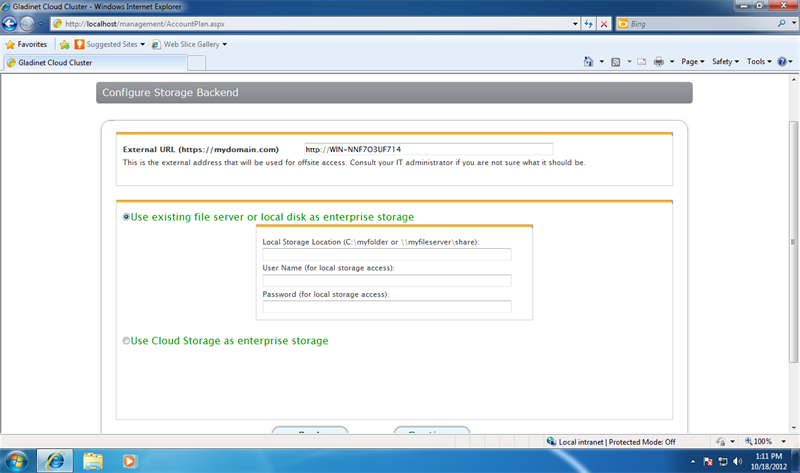
                    Next you will select the backend storage for your CentreStack. You
                    can select local storage, file server storage or any public cloud storage services
                    that is supported.</p>
                <table width="100%" border="0">
                    <tr>
                        <td width="25%" style="text-align: center;">
                            <a id='A25' class="various iframe" href="target/wp28800.png">
                                <img src="target/wp28160.png" alt="Microsoft Web Platform Installer" /></a><br />
                            Configure Backend Storage
                        </td>
                        <td width="25%">
                        </td>
                        <td width="25%">
                        </td>
                        <td width="25%">
                        </td>
                    </tr>
                </table>
                <p>
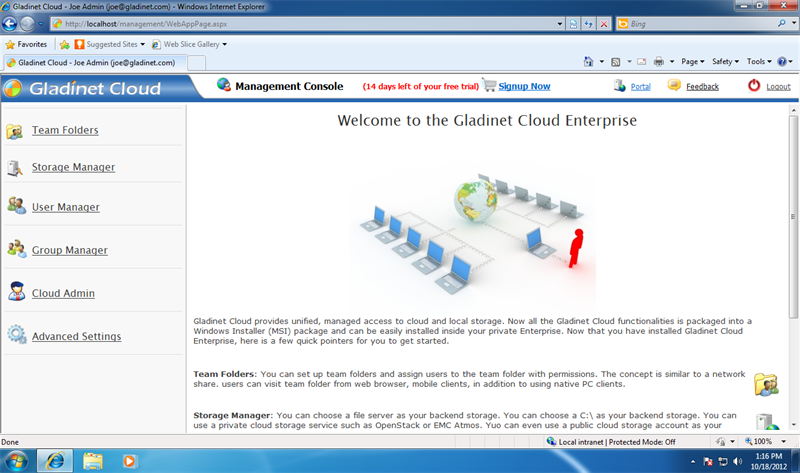
                    Next it is all ready, you are in the management console, starting the 90-day trial.</p>
                <table width="100%" border="0">
                    <tr>
                    
                        <td width="25%" style="text-align: center;">
                            <a id='A27' class="various iframe" href="target/wp30800.png">
                                <img src="target/wp30160.png" alt="Microsoft Web Platform Installer" /></a><br />
                            Administrator Management Console
                        </td>
                        <td width="25%">
                        </td>
                        <td width="25%">
                        </td>
                    </tr>
                </table>
            </td>
        </tr>
    </table>
</asp:Content>